
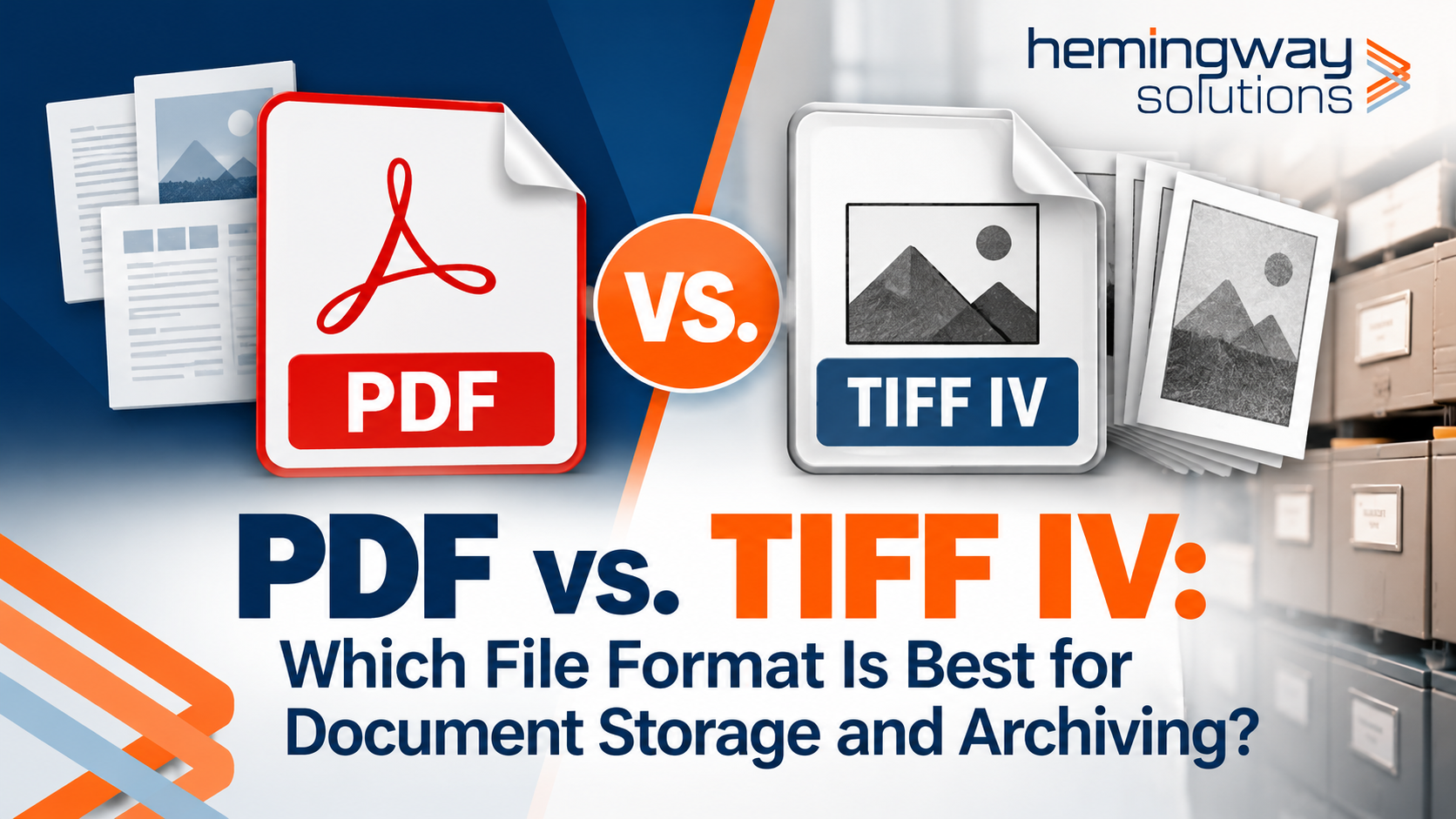
PDF vs. TIFF IV: Which File Format Is Best for Document Storage and Archiving?
Just because a document is digital doesn’t mean it’s being stored in the best format.
I’ve been helping organizations go paperless for more than 30 years, and one of the questions that doesn’t get asked often enough is: What file format should we use to store our documents?
Most people automatically think of PDF. After all, PDFs are everywhere. We receive invoices as PDFs, download reports as PDFs, and scan paper documents into PDFs.
But there’s another format that’s been around for decades and is still widely used in document management systems: TIFF, particularly TIFF images using CCITT Group 4 compression, sometimes referred to as TIFF G4 or TIFF IV.
Both formats have advantages. But they aren’t interchangeable, and choosing the wrong one can affect storage costs, document quality, searchability, security, and long-term accessibility.
Let’s look at the differences.
1. What Is a PDF File?
PDF stands for Portable Document Format. Adobe developed it in the early 1990s to make it possible to share documents between computers without changing their appearance.
A PDF can contain much more than a picture of a page. Depending on how it was created, it can contain text, images, fonts, hyperlinks, forms, annotations, and even interactive content.
That’s one of PDF’s greatest strengths. But it also creates confusion because not all PDF files are the same.
The Different Types of PDF Files
1. Native or Text-Based PDF
This is a PDF created directly from an application such as Microsoft Word, Excel, or an accounting system.
The text is stored as actual characters, not just an image of the page.
Advantages:
- Text is searchable without OCR.
- You can select and copy text.
- File sizes are often relatively small.
- Text generally remains sharp when enlarged.
- Excellent for sharing electronically generated documents.
For example, a 10-page Word document converted to PDF might only occupy 100–300 KB, depending on fonts, images, and other content.
2. Image-Based or Scanned PDF
This is what you typically get when you put paper documents into a scanner and select PDF as the output.
Each page is essentially a picture.
The problem is that your computer doesn’t automatically understand the words in that picture. Without OCR, the text isn’t searchable or selectable.
File sizes can also be considerably larger, particularly when scanning in color or at high resolution.
3. Searchable PDF
A searchable PDF combines the scanned image with a text layer created using Optical Character Recognition (OCR).
You still see the original document, but software can search for words within it.
This is an improvement over an image-only PDF, but OCR isn’t perfect. Handwriting, poor-quality scans, faded text, and unusual fonts can produce recognition errors.
The searchable text may not exactly match what appears on the document.
4. PDF/A — Archival PDF
PDF/A is a specialized family of PDF standards designed for long-term preservation.
Unlike a general-purpose PDF, PDF/A restricts certain features that could make a document difficult to reproduce years from now.
For example, PDF/A requires appropriate font embedding and prohibits encryption. It also restricts or prohibits features such as external dependencies and executable content, depending on the PDF/A version.
PDF/A is commonly used by government agencies, archives, and organizations with long-term records retention requirements.
There are several versions, including PDF/A-1, PDF/A-2, PDF/A-3, and PDF/A-4. They have different capabilities and restrictions.
One important point: PDF/A is not automatically searchable. An image-only PDF/A file may still need OCR.
5. Interactive and Fillable PDF
These PDFs contain form fields, checkboxes, digital signature fields, and sometimes scripts.
They can be very useful for collecting information, but they are not necessarily the best choice for permanent record storage.
Interactive features may depend on the PDF viewer, and some capabilities are restricted in archival PDF standards.
2. What Is TIFF IV?
TIFF stands for Tagged Image File Format.
TIFF is an image format that’s been widely used in scanning, imaging, and document management for decades.
When people in the document management industry refer to TIFF IV, they usually mean a TIFF file using CCITT Group 4 compression, also called TIFF G4.
Group 4 compression was developed for black-and-white document images. It is particularly effective at compressing pages containing printed text, lines, and forms.
Unlike PDF, a TIFF G4 image doesn’t contain interactive forms, embedded scripts, or executable document features.
It’s primarily designed to preserve the image of a document.
Why TIFF G4 Has Been Popular in Document Management
TIFF G4 offers several important advantages:
- Efficient compression: Excellent for black-and-white text documents.
- Lossless compression: Compression preserves the original black-and-white pixels without introducing additional image distortion.
- Consistent appearance: The document is stored as an image rather than depending on fonts to reproduce its appearance.
- Simple image structure: It doesn’t support the complex interactive features found in PDFs.
- Long history: TIFF has been supported by professional imaging and document management systems for decades.
- Multipage support: A single TIFF file can contain multiple pages.
However, TIFF G4 has an important limitation: it supports only black-and-white, one-bit images.
If you’re scanning photographs, colored charts, or documents where color conveys important information, another format may be more appropriate.
TIFF itself can store grayscale and color images, but those images require compression methods other than Group 4.
3. PDF vs. TIFF G4: File Size Comparison
One of the most common assumptions is that PDF files are always larger than TIFF files.
That’s not necessarily true.
A PDF can contain efficiently compressed text, JPEG images, JPEG 2000 images, or even CCITT Group 4-compressed images.
In fact, a black-and-white scanned PDF using Group 4 compression can be almost the same size as an equivalent TIFF G4 file.
The biggest factors affecting file size are resolution, color depth, page content, compression method, and whether OCR text is included.
Example: A 10-Page Scanned Document
These are illustrative size ranges, not measurements from a controlled test. Actual results vary considerably.
| Format | Approximate file size |
|---|---|
| Native text PDF | 210-720 KB |
| TIFF G4, 300 DPI, B&W | 200–700 KB |
| Scanned PDF, G4 compression | 220–800 KB |
| Searchable PDF, G4 image + OCR | 250 KB–1 MB |
| Grayscale scanned PDF | 1–5 MB |
| Color scanned PDF | 2–15 MB |
A document with photographs, shaded backgrounds, or detailed graphics can be much larger.
The important lesson is that the compression method and scan settings often matter more than the file extension.
What Does That Mean for Your Organization?
Imagine an organization scanning 100,000 pages every year.
If its average page requires 50 KB, that’s approximately 5 GB of image data.
If its average page requires 500 KB, that’s approximately 50 GB.
That’s a tenfold difference.
Over 10 or 20 years, especially when you include backups, replication, and disaster recovery, those differences can become significant.
Before selecting a scanning format, I recommend testing a representative sample of your actual documents.
4. PDF vs. TIFF G4: Side-by-Side Comparison
| Feature | TIFF G4 | |
|---|---|---|
| Primary purpose | Document exchange and presentation | Black-and-white document imaging |
| Stores native text | Yes | No |
| Supports OCR | Yes, embedded text layer | Usually external OCR data |
| Multipage documents | Yes | Yes |
| Color support | Yes | No, G4 is B&W |
| Lossless image compression | Supported | Yes |
| Digital signatures | Supported | Not natively |
| Interactive forms | Supported | No |
| Embedded scripts | Possible in general PDFs | No |
| Font dependency | Possible; depends on PDF | None for image appearance |
| Long-term archival | PDF/A recommended | TIFF G4 can be suitable |
| Browser compatibility | Excellent | More limited |
| Editing and annotation | Broad software support | Depends on software |
| Best application | Sharing, electronic documents, mixed content | Scanned black-and-white records |
5. Which Format Is More Secure?
This is an area where TIFF has a meaningful advantage in simplicity.
A standard PDF can contain JavaScript, embedded files, hyperlinks, and interactive elements. Certain PDF features or vulnerabilities in PDF readers can create security risks.
TIFF G4 doesn’t support those same active document features.
However, that doesn’t mean TIFF files are completely immune to security problems. Malformed image files can exploit vulnerabilities in image-processing software, too.
The more important issue is how documents are managed.
A secure document management system should provide access controls, audit trails, retention policies, backup protection, and appropriate malware scanning.
Neither TIFF nor PDF automatically provides all those capabilities.
For organizations with long-term retention requirements, it’s also worth remembering that PDF/A is designed specifically for preservation and limits many of the features that make general-purpose PDFs more complicated.
6. What About Document Quality?
Both formats can preserve excellent-quality scanned documents when configured correctly.
For black-and-white text documents, 300 DPI is a common scanning resolution that balances readability and file size.
TIFF G4 works particularly well for clean printed text, contracts, invoices, and forms.
However, there are situations where black-and-white scanning can actually make documents worse.
Think about a faded receipt, a handwritten note in light pencil, or a form with colored highlighting.
Converting these documents to one-bit black-and-white images can permanently eliminate details.
In those cases, grayscale or color scanning may be necessary.
A native PDF has another advantage: when the text is stored as actual characters or vector graphics, it can remain sharp regardless of how much you zoom in.
With TIFF, you’re looking at pixels. Eventually, enlarging the document reveals those pixels.
7. What About OCR and Searching?
This is where the conversation gets interesting.
A TIFF G4 file is an image. By itself, it doesn’t know what words appear on the page.
A scanned PDF without OCR has the same limitation.
A searchable PDF contains an OCR text layer, allowing many applications to search the document’s contents.
But here’s something that organizations often overlook.
You don’t necessarily need to embed OCR text inside every document to make it searchable.
A true enterprise content management system can store the document image and maintain the OCR text separately in an indexed database or search system.
For example, a document management platform such as Laserfiche can make scanned documents searchable without requiring users to manage individual searchable PDFs in Windows folders.
The result is that employees can search for a customer’s name, invoice number, or phrase and locate matching documents.
And when combined with metadata, workflows, and AI, organizations can go much further than basic text searching.
They can automatically classify documents, extract important information, validate data, and route documents to the right people.
That’s where going paperless starts delivering real productivity improvements.
8. Where Should You Use Each Format?
When PDF Is the Better Choice
PDF is generally my recommendation when you’re:
- Sharing documents with customers, vendors, or outside organizations.
- Creating documents electronically in Word, Excel, or other applications.
- Distributing reports, manuals, and presentations.
- Collecting digital signatures or using fillable forms.
- Publishing documents on websites.
- Archiving electronically generated records using an appropriate PDF/A profile.
For these applications, PDF is convenient, widely supported, and often the most practical option.
When TIFF G4 Is the Better Choice
TIFF G4 is particularly attractive when you’re:
- Scanning large volumes of black-and-white paper records.
- Preserving the visual appearance of printed documents.
- Using a document management system designed to store TIFF images and maintain OCR indexes separately.
- Processing standardized forms with little or no color.
- Migrating or maintaining legacy document imaging repositories that already use TIFF.
For high-volume scanning of black-and-white records, TIFF G4 remains a proven option.
However, I wouldn’t automatically recommend converting every PDF into TIFF. You could lose native text, color, annotations, digital signatures, and other useful information.
9. What About Long-Term Archiving?
If your organization needs to preserve documents for 10, 20, or even 50 years, file format becomes especially important.
You want to make sure future employees can open and read the documents, even when today’s software is long gone.
Both TIFF and PDF/A have established histories in digital preservation.
TIFF’s advantage is its relatively straightforward image representation. PDF/A’s advantage is that it provides standardized requirements for preserving complete document appearance, including fonts and other resources.
There isn’t one universally correct format.
For scanned black-and-white documents, TIFF G4 may be an excellent archival choice.
For born-digital documents, PDF/A is often preferable because it can preserve searchable text, vector graphics, and other original document characteristics.
The U.S. National Archives and Records Administration (NARA) recognizes multiple preservation formats, including appropriate PDF and TIFF formats, depending on the type of record and applicable requirements.
The lesson is not that PDF is bad or TIFF is always better.
The lesson is to choose a preservation format based on the record, not simply because it’s the default option on your scanner.
10. The Bigger Problem: Where Are You Storing These Files?
Here’s something I’ve been telling organizations for years.
You can scan every piece of paper in your office and still have a document management problem.
If you’re saving thousands of PDFs or TIFF files into folders on a shared network drive, you’ve primarily replaced your filing cabinets with electronic filing cabinets.
Employees may still spend valuable time opening documents one at a time, searching through folders, and trying to figure out which version is correct.
And there’s another issue: ordinary file folders don’t automatically give you the retention controls, workflow automation, audit history, or document-level metadata that a records management system can provide.
That’s why I encourage organizations to look beyond scanning.
The real opportunity is to build a system that knows what each document is, who should have access to it, how long it needs to be retained, and what should happen next.
For example, an incoming invoice shouldn’t simply be scanned and stored.
It should be identified, have its data extracted, be routed for approval, and be integrated with your accounting system.
That’s a much bigger improvement than simply converting paper into PDF or TIFF.
My Recommendation After 30 Years of Helping Organizations Go Paperless
I wouldn’t recommend using just one file format for everything.
For documents created electronically, I generally prefer retaining their native digital information or using an appropriate PDF or PDF/A format.
For high-volume scanning of black-and-white paper records, TIFF G4 is still an excellent option, particularly when used with a document management system that handles OCR and indexing separately.
For documents containing color, photographs, or faint markings, preserve the necessary detail using an appropriate grayscale or color format.
And if you’re building a long-term records repository, make sure you have policies for file validation, retention, security, backups, and future format migration.
But my biggest recommendation is this:
Don’t confuse digitizing documents with managing information.
The file format is important. But what your organization does with the document after it’s scanned is where the real value comes from.
At Hemingway Solutions, we help organizations go beyond scanning and file storage by using Laserfiche document management, workflow automationLaserfiche Consulting Projects Review for 2023, and AI to reduce repetitive work and improve productivity.
If you’re wondering whether your organization is using the right approach to going paperless, I’d be happy to discuss it.
Visit HemingwaySolutions.net or contact me at [email protected].
Larry Phelps — Hemingway Solutions LLC